Sub-user Panel User Guide
Overview
The Sub-user Module in Red Dragon Pay allows merchants to create and manage subordinate user accounts with restricted permissions. Sub-user can perform defined tasks as follows:
-
View Payment Filter
-
View Payment Reports
- Sale Report
- Failed Report
- Refund Report
- Settlement Report
- Pos Report
-
Create Invoice
-
View Invoice
-
View Chargeback
This guide provides complete details of each module available to Sub-user, including field-level explanations.
Sub-user can only access modules allowed by its parent merchant.
Sub-user can only access data of its parent merchant.
Users can view reports for any period up to 90 days.
1. 🧭 Payment Filter Page
📍 Summary
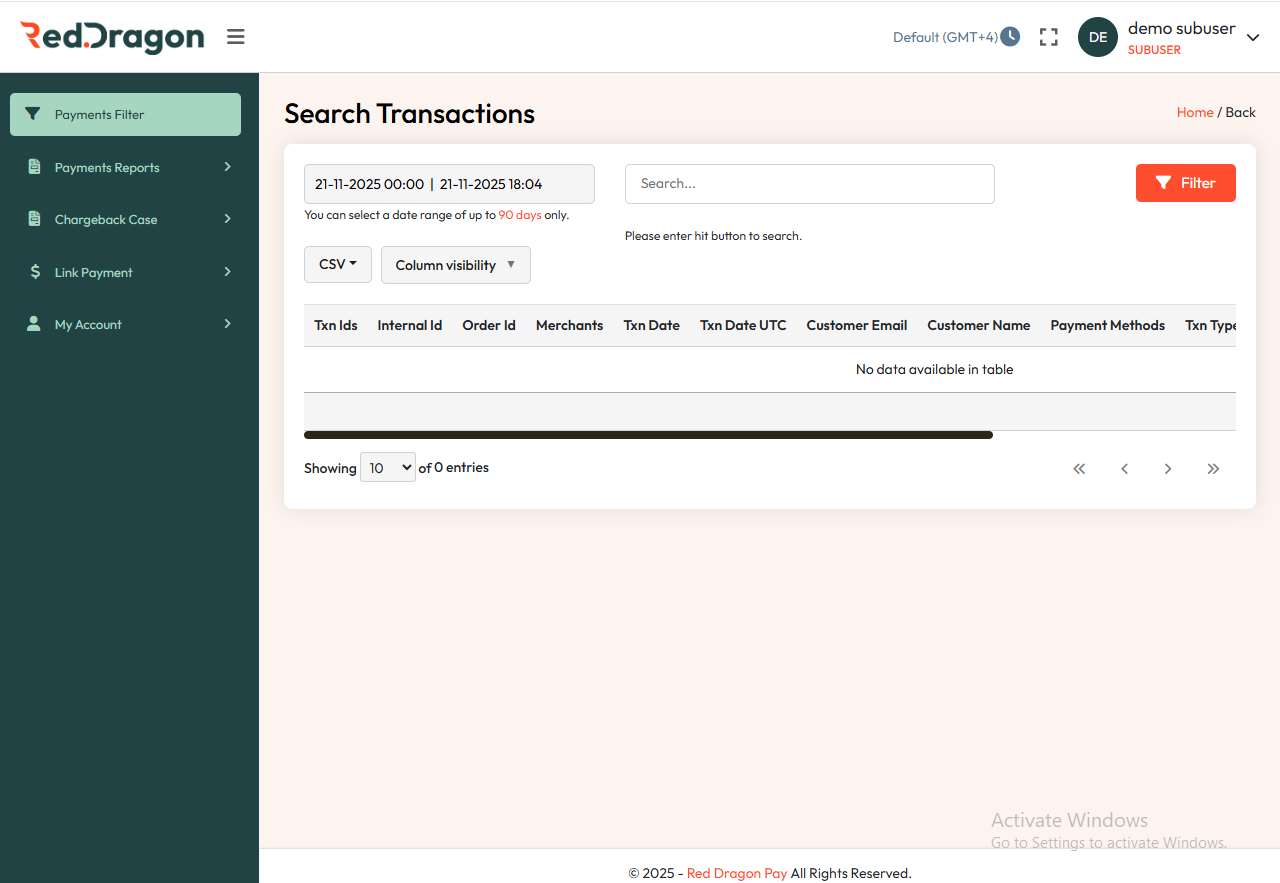
The report offers a complete view of all transaction types. Users can refine results using various search filters to quickly locate specific transactions.
🔍 Main Features
Date Range Selection
- Fields: Two date-time pickers.
- Purpose: Define the start and end time for the transaction search.
- Example: From 27-05-2025 00:00 to 27-05-2025 10:31.
- Maximum range you can select calender is 90 days.
Search Button
- Action: Execute the search based on the selected date range.
CSV Dropdown
- Function: Export the search results in CSV format.
Column Visibility
- Function: Customize which columns are visible in the transaction table.
Search Bar
- Placeholder: "Please enter hit button to search."
- Function: Allows keyword-based filtering of the displayed results.
Filter Button
- Location: Right side of the control panel.
- Function: Opens additional filtering options.
📊 Transaction Table
Columns Available:
- Txn ID - Unique transaction identifier.
- Internal Id - Internal system reference.
- Order Id - Associated order number.
- Merchants - Merchant name or ID.
- Txn Date / Txn Date UTC - Local and UTC timestamps of the transaction.
- Customer Email / Name - Customer details.
- Payment Methods - Method used (e.g., card, wallet).
- Txn Type - Type of transaction (e.g., payment, refund).
- Card Num - Masked card number used in the transaction.
- Currency - The currency used in the transaction.
- Status - Current status (e.g., success, failed).
- Amount - Total amount.
Note: The table may show "No data available in table" when no transactions match the current search criteria.
Navigation Sidebar:
In the sidebar, navigate to Payments Filter (highlighted).
2. Login & Navigation
After logging in as a Sub-user, the left sidebar displays the modules available based on permissions granted by the merchant administrator:
- Payments Filter - Search transactions using various parameters (only this pages access given to the Sub-user by default)
- Payments Reports - View and export transaction activity
- Chargeback Case - View and manage disputes
- Link Payment - Create and search payment links or invoices
- My Account - View profile and change password
3. Payments Reports
The Payments Reports section includes multiple reporting modules that display transaction activity and other payment-related operations.
3.1 Captured Transactions (Sales Report)
Purpose
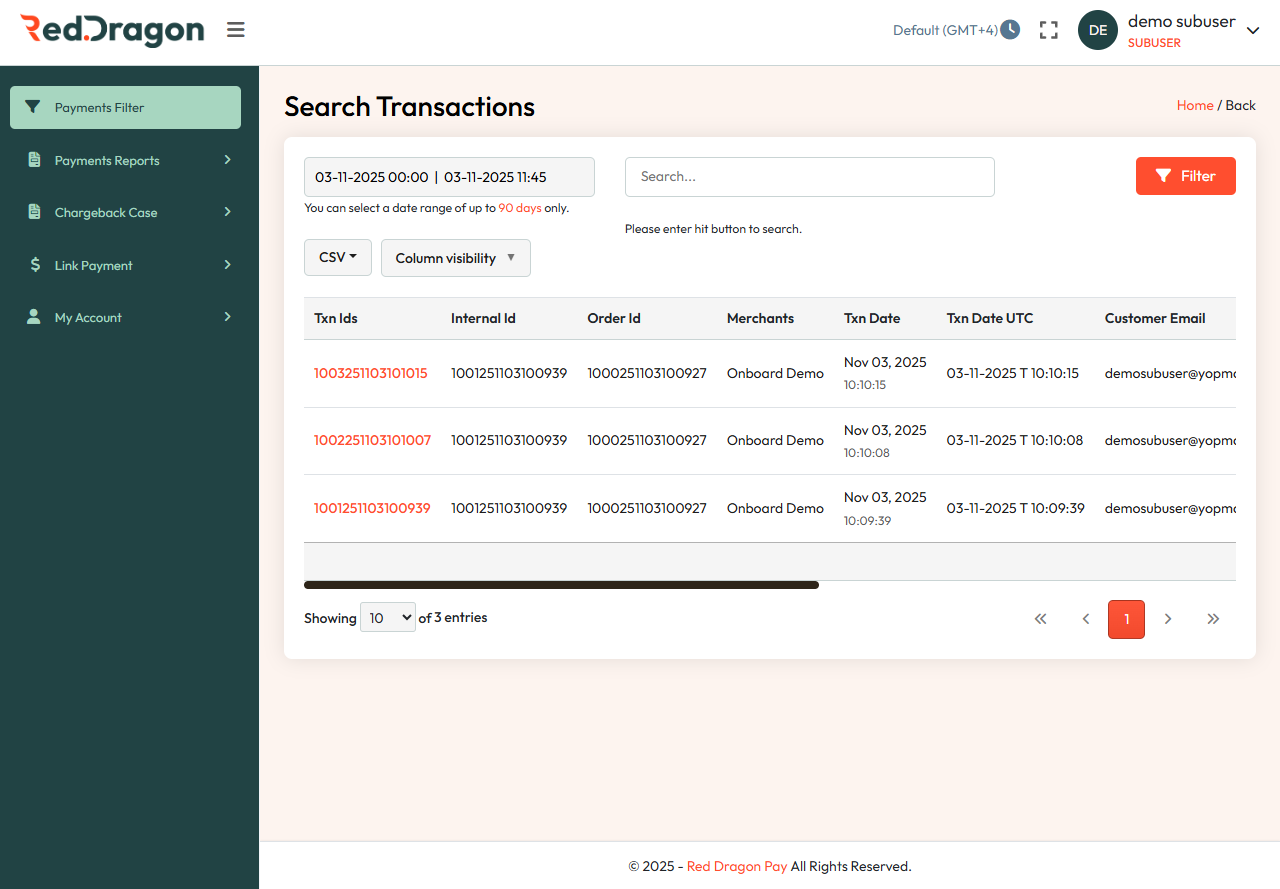
Displays all successfully captured (completed) transactions.
Fields
| Field | Description | Notes |
|---|---|---|
| Txn ID | System-generated unique transaction ID | Clickable for details |
| Internal ID | Internal reference ID | Used by tech/support teams |
| Order ID | Merchant-generated order reference | Matches merchant’s system |
| Txn Date / UTC | Timestamp of the transaction | Shows Local + UTC |
| Business Name | Associated merchant | Useful for multi-merchant access |
| Customer Email | Email used during payment | - |
Filters
- From Date and To Date for date range.
Search Tools
- Search by Txn ID, Internal ID, Order ID, Customer Email, Card Number.
- Filter by Payment Method and Currency.
Export Options
- Download as PDF or CSV.
- Use Column Visibility to hide/show fields.
Practical Use Cases
- Reconciliation - Match TXN ID with your Order ID.
- Audit - Use UTC timestamps for standardized logs.
- Support Cases - Share TXN ID with support when raising disputes.
- Business Summary - Monitor successful sales over a selected period.
Actions
3.2 Failed Reports
Purpose
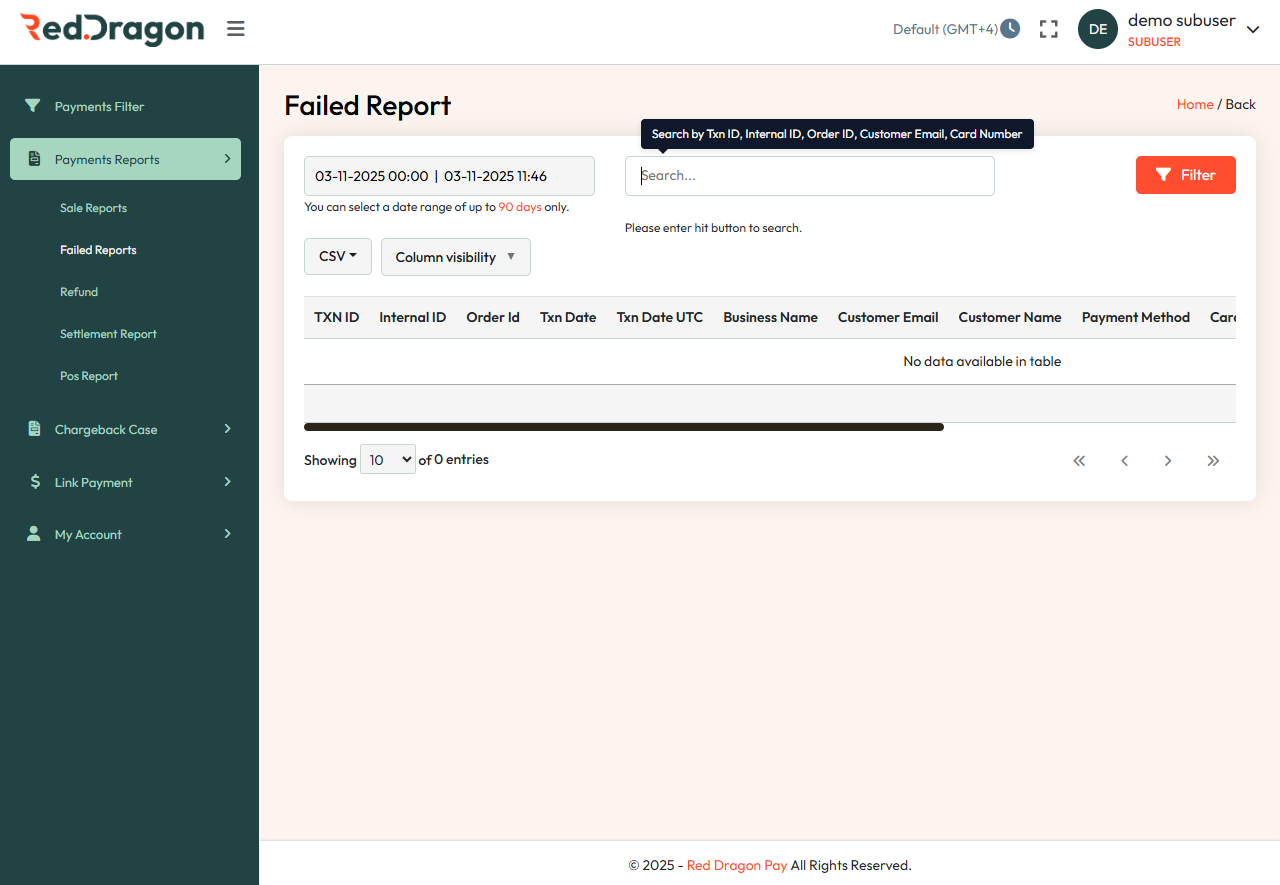
Displays all failed payment attempts along with decline or error details.
Fields
| Field | Description | Notes |
|---|---|---|
| Txn ID / Internal ID / Order ID | Transaction identifiers | - |
| Txn Date / UTC | Timestamp of failure | - |
| Business Name | Associated merchant | - |
| Customer Email / Name | Customer identity | - |
| Payment Method | Card / Wallet / UPI / others | - |
Filters
- Select From Date and To Date (Not more than 90 days).
Search Tools
- Search by Txn ID, Internal ID, Order ID, Customer Email, Card Number.
- Filter by Payment Method and Currency.
Export Options
- Download as PDF or CSV.
- Column Visibility to show/hide fields.
Actions
- Filter - Search by Txn ID, Internal ID, Customer Email, or masked Card Number
- Export - CSV
3.3 Refund Reports
Purpose
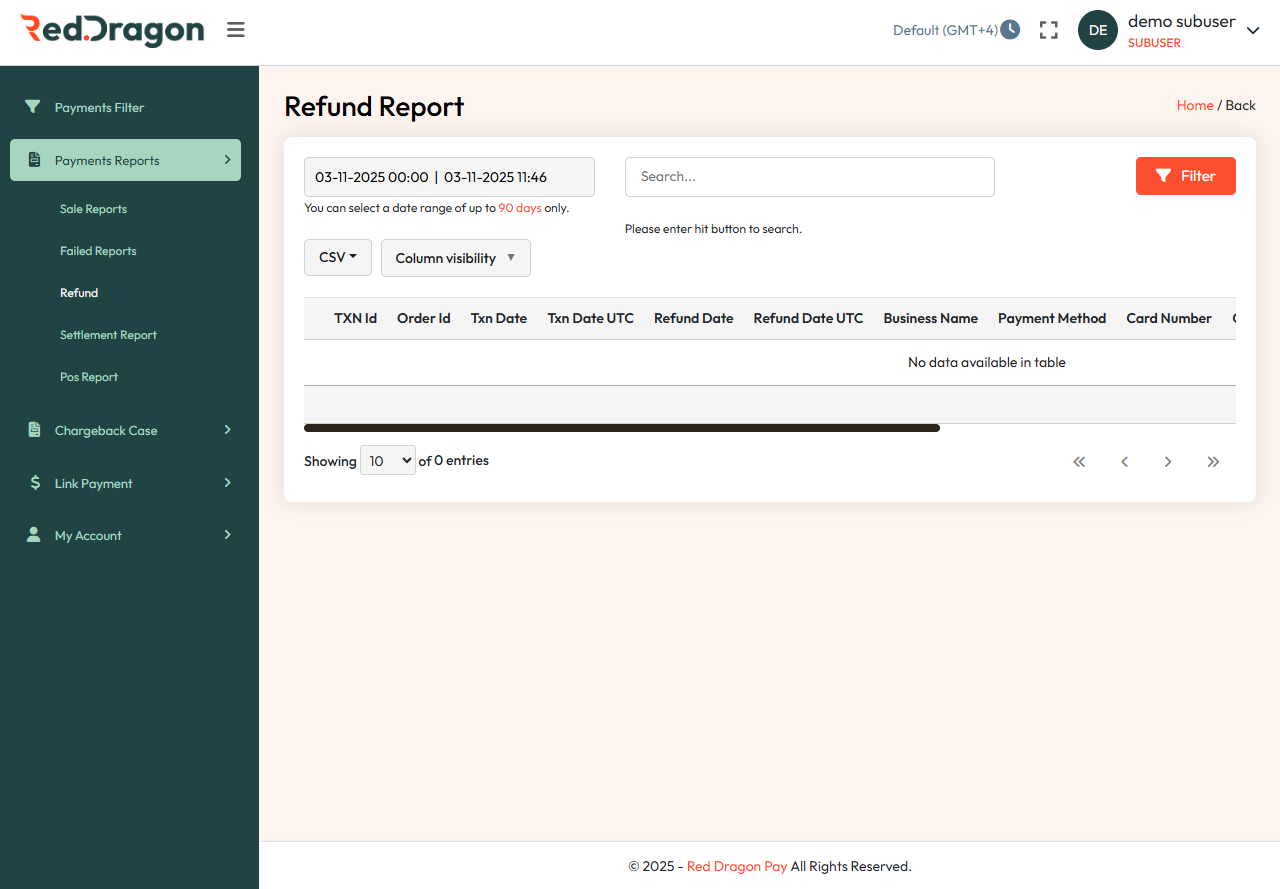
Tracks all refunded transactions (full or partial) for monitoring return activities of the concerned merchant.
Fields
| Field | Description | Notes |
|---|---|---|
| Txn ID / Order ID | Reference of the original transaction | - |
| Txn Date / Refund Date (UTC) | Timestamps for both events | - |
| Business Name | Merchant initiating refund | - |
| Payment Method | Card, Wallet, or Bank Transfer | - |
| Card Number | Masked card number | PCI-DSS compliant |
Actions
- Export - CSV
- Column Visibility - Show or hide columns
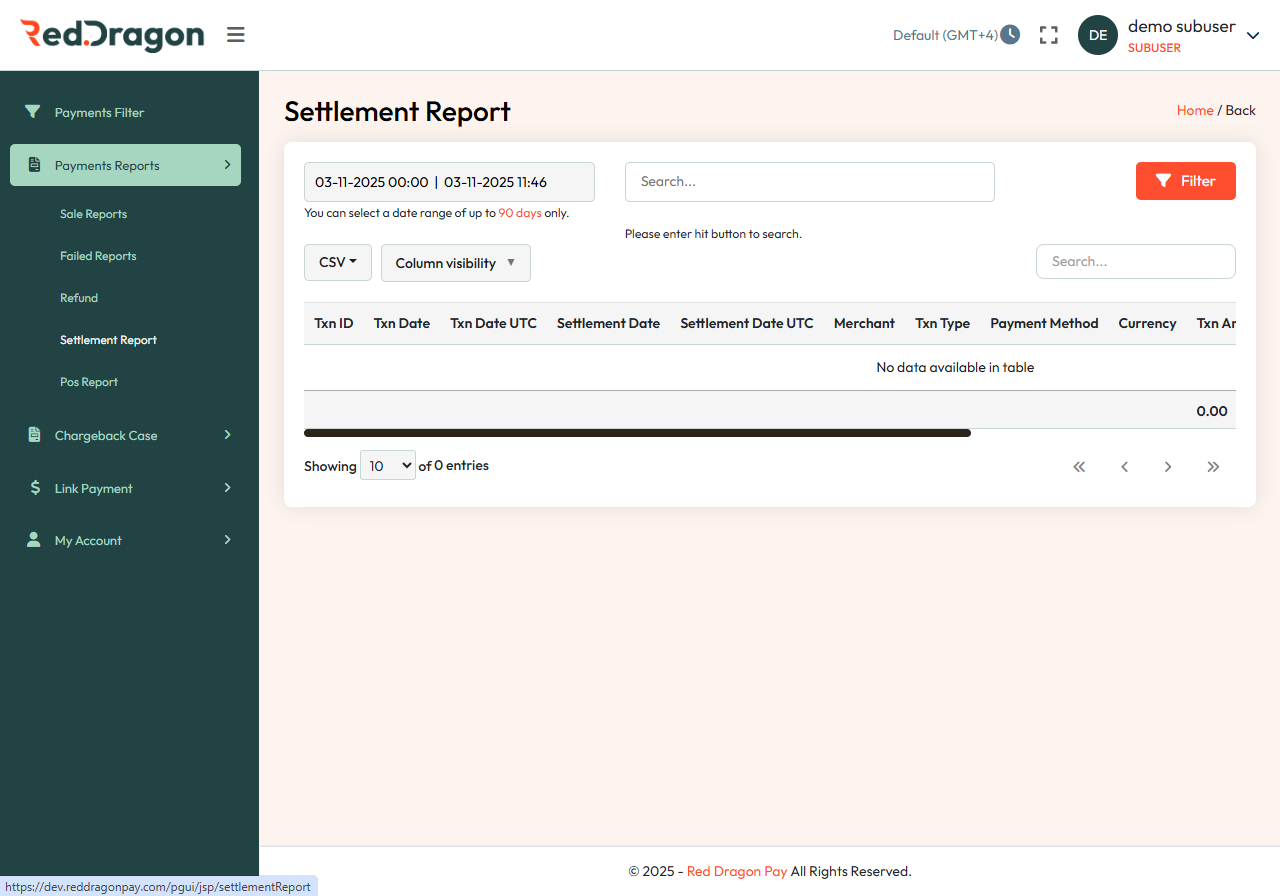
3.4 Settlement Reports
Purpose
Displays merchant settlement and payout information.
Fields
| Field | Description | Notes |
|---|---|---|
| Txn ID / Date / UTC | Settlement transaction identifiers | - |
| Settlement Date / UTC | Date/time of payout | - |
| Merchant | Associated merchant | - |
| Txn Type / Payment Method / Currency / Amount | Financial settlement data | - |
Actions
- Export - CSV
- Filter - Up to 90 days range
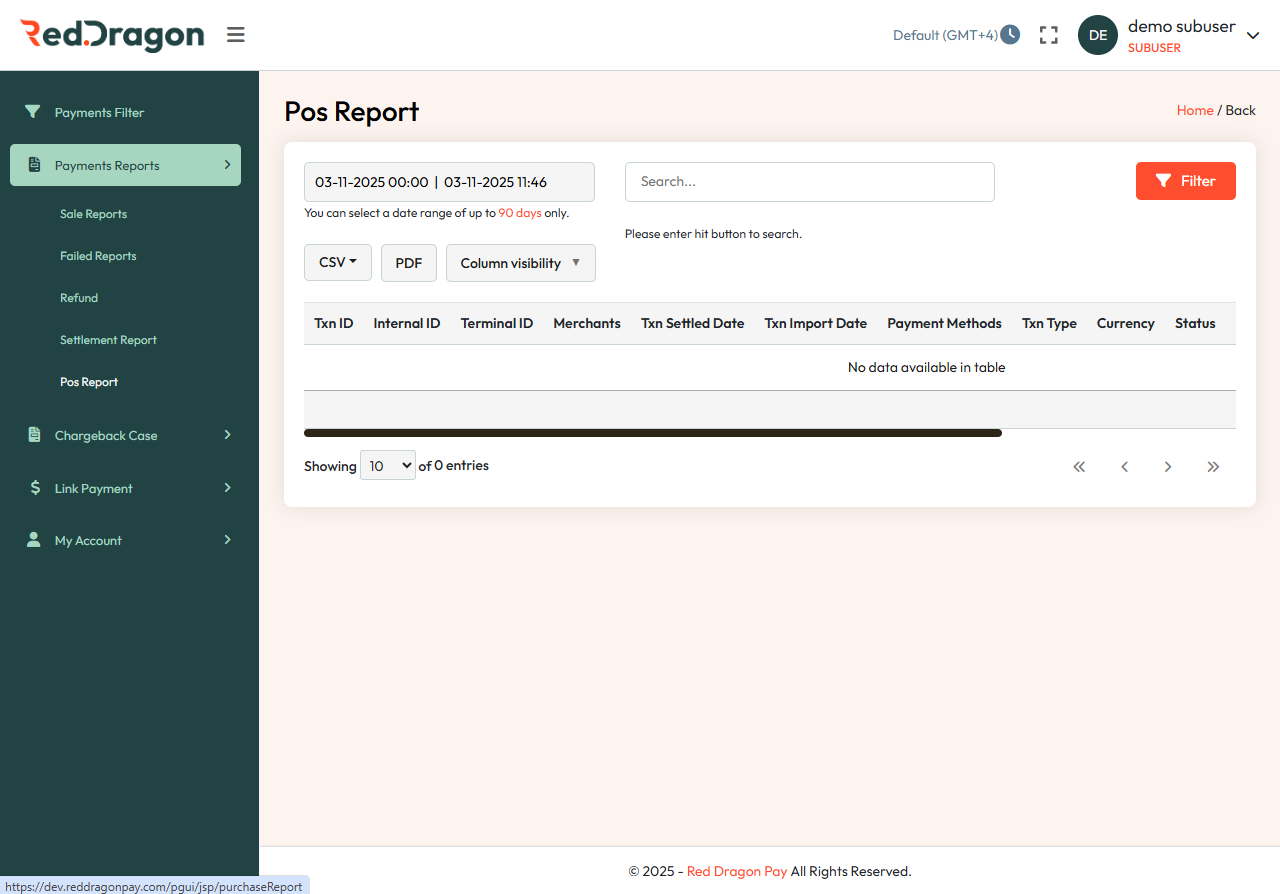
3.5 POS Reports
Purpose
A POS Transaction Report is a summary of all transactions made through point-of-sale terminals. It allows merchants to track in-store payments, verify settlements, and reconcile daily POS activity.
Fields
| Field | Description | Notes |
|---|---|---|
| Txn ID / Internal ID / Terminal ID | POS reference identifiers | - |
| Txn / Settled / Import Date | POS transaction lifecycle timestamps | - |
| Merchant / Payment Method / Txn Type / Currency / Status | Transaction details | - |
Actions
- Export - CSV & PDF
- Column Visibility - Toggle columns
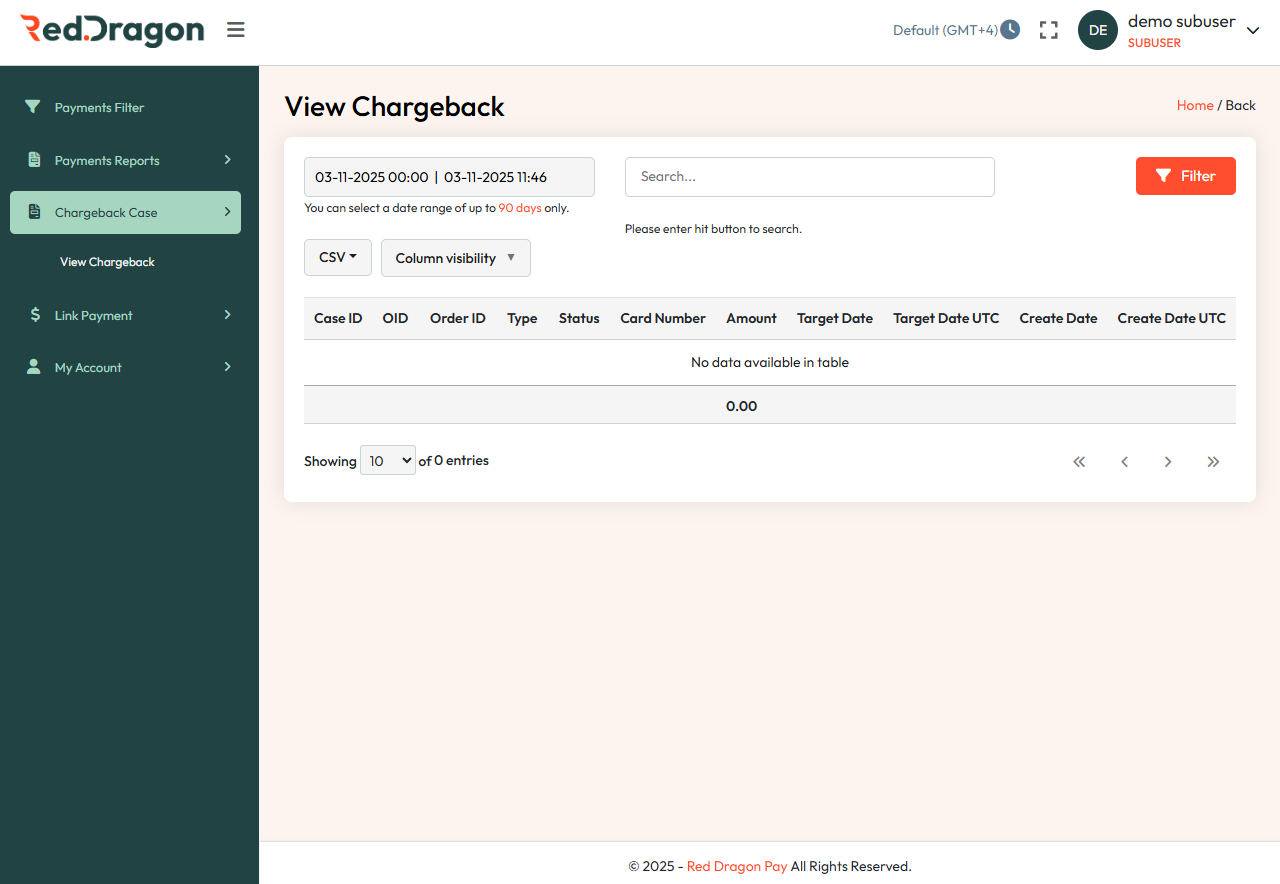
4. Chargeback Case
Purpose
Displays chargeback cases raised by customers or issuing banks.
Fields
| Field | Description | Notes |
|---|---|---|
| Case ID / OID / Order ID | Chargeback identifiers | - |
| Type / Status | Chargeback type & current status | - |
| Card Number / Amount | Disputed transaction details | Masked |
| Target Date / Created Date (UTC) | Case timelines | - |
Actions
- Export - CSV
- Filter - Search by date range or reference ID
5. Link Payment
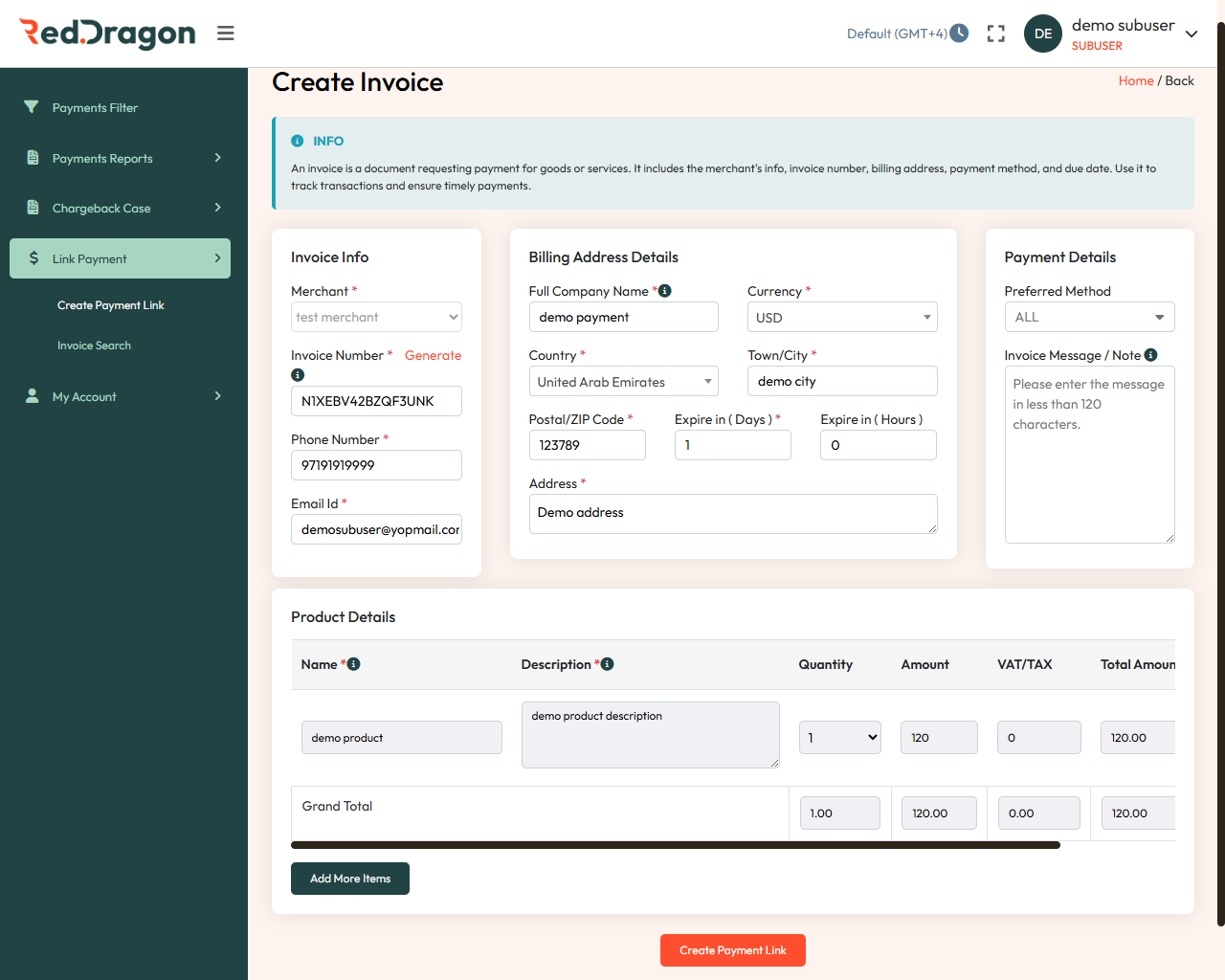
5.1 Create Payment Link / Invoice
Purpose
Create an invoice and generate a secure payment link for customers.
Field Breakdown
| Section | Field | Description | Notes |
|---|---|---|---|
| Invoice Info | Merchant | Select merchant account | Dropdown |
| Invoice Number | Auto-generated unique ID | Click Generate | |
| Phone Number | Customer mobile number | Mandatory | |
| Email ID | Customer email | Required for link delivery | |
| Billing Address | Company Name | Customer’s business name | Optional |
| Country | Dropdown selection | Mandatory | |
| Postal/ZIP Code | Postal code | - | |
| Address | Full address | Max 150 chars | |
| Expire (Days/Hours)** | Payment link validity | Default: 1 day | |
| Currency | Choose transaction currency | - | |
| Payment Details | Preferred Method | Card / Wallet / etc. | - |
| Invoice Message | Optional note | - | |
| Product Details | Product Name | Item name | - |
| Description | Product description | - | |
| Quantity / Amount / VAT | Pricing details | Auto-calculated totals |
Steps to Create
- Enter all mandatory fields
- Add product items as needed
- Click Create Payment Link
- System generates an invoice + shareable link
5.2 Invoice Search
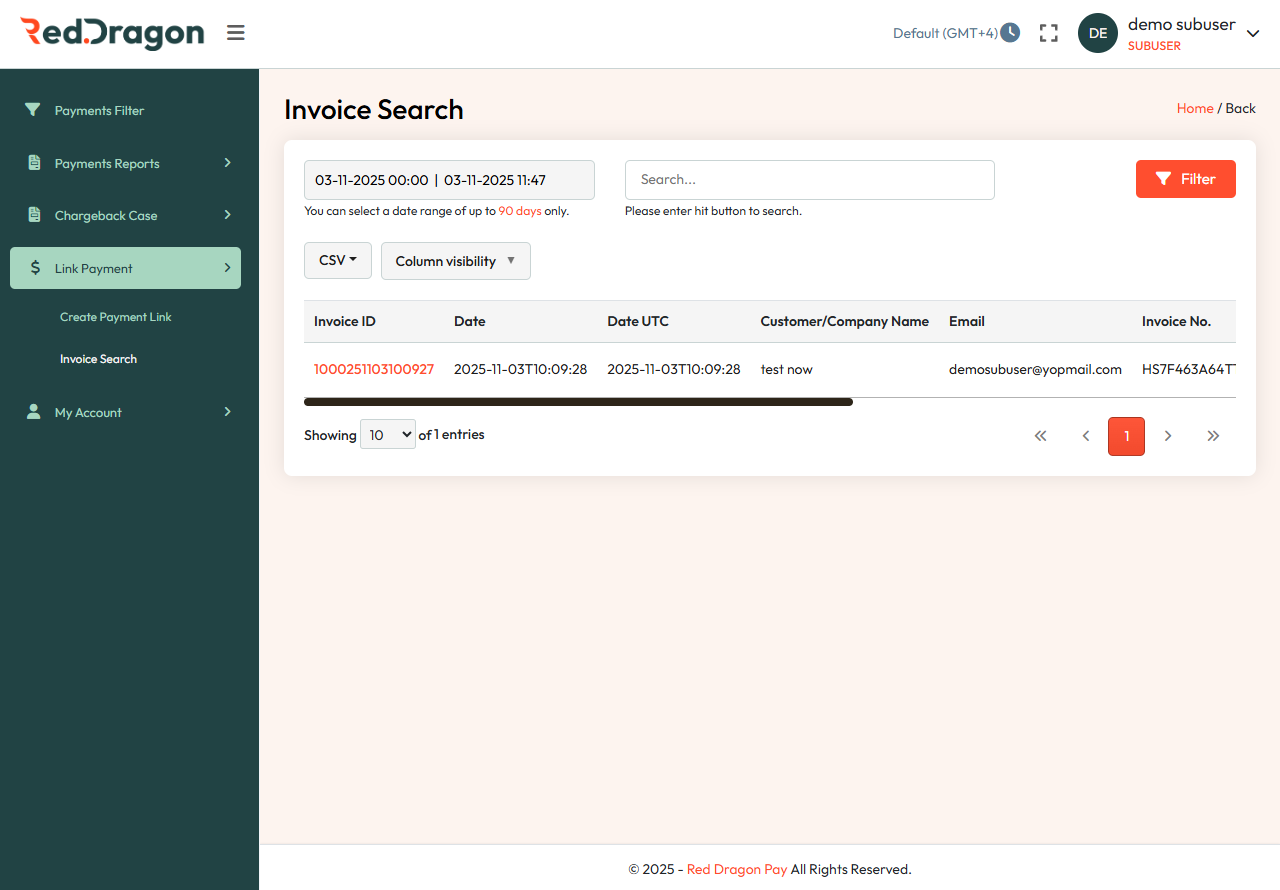
Purpose
Search for previously created invoices.
Fields
| Field | Description | Notes |
|---|---|---|
| Invoice ID / Number | Unique invoice reference | Clickable |
| Date / UTC | Invoice creation timestamp | - |
| Customer / Company Name | Customer details | - |
| Customer email | - |
Actions
- Filter - Up to 90 days date range
- Export - CSV
6. My Account
6.1 My Profile
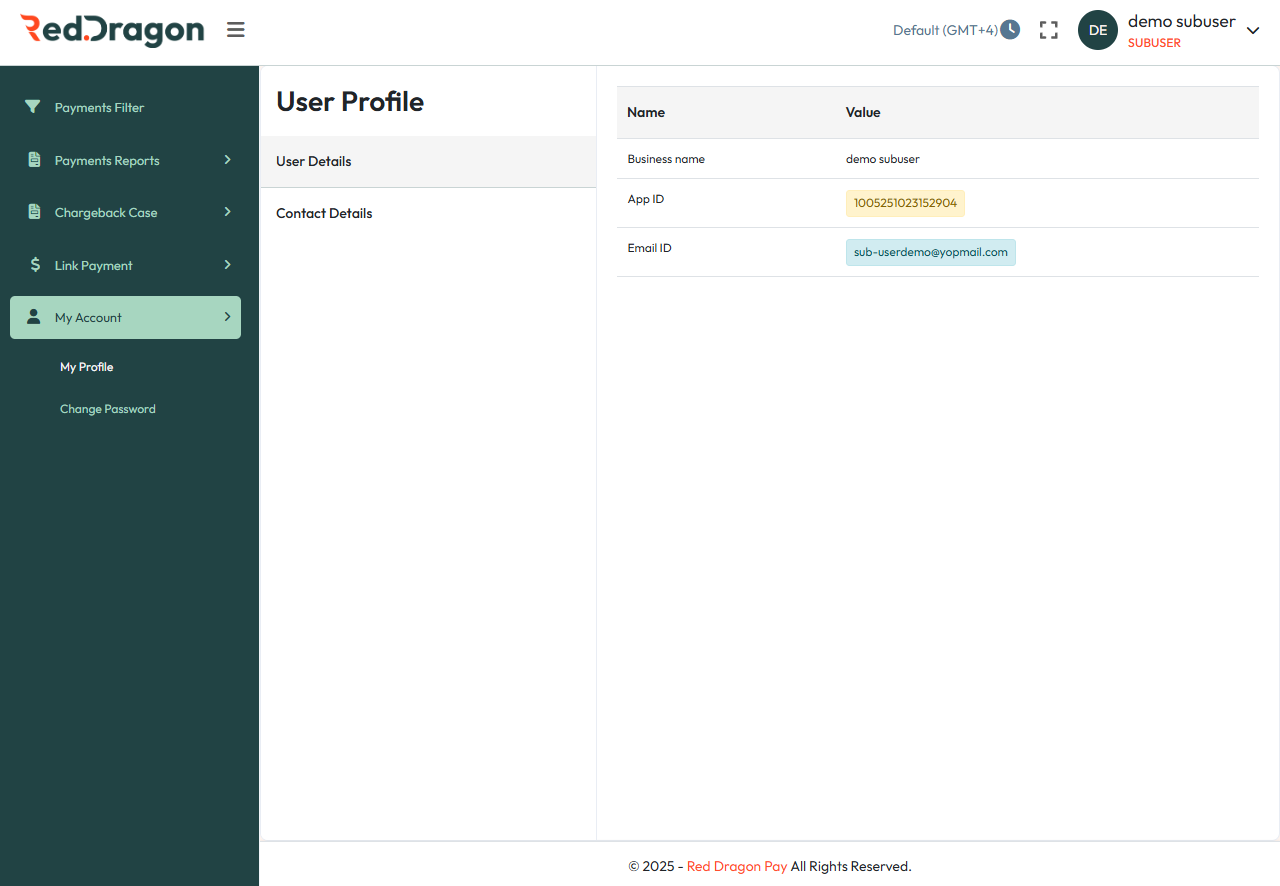
Purpose
Displays profile information of the logged-in Sub-user.
Fields
| Field | Description |
|---|---|
| Business Name | Registered business name |
| App ID | System-generated application ID |
| Email ID | Registered login email |
6.2 Change Password
Located under My Account → Change Password.
Follow on-screen prompts to update your password.
Steps
- Enter your old password.
- Enter and confirm your new password.
- Click Save.
Password Criteria
- Length: 8-32 characters.
- Must include:
- At least one uppercase letter
- At least one lowercase letter
- At least one special character (! @ # , . + / =)
- Must not be the same as any of your last four passwords.
7. Best Practices & Notes
- Access Control: Permissions are assigned by the merchant admin
- Export Options: CSV (default), PDF for selected modules
- Time Zone: All timestamps follow GMT+4
- PCI-DSS: Card numbers are masked across all reports
- Browsers Supported: Chrome or Edge (latest versions recommended)